
PSD Duo Network Gateway
About the Duo Network Gateway
PSD Computing and IT hosts a Duo Network Gateway (DNG) which allows offsite users to SSH or RDP into devices on campus without the need for VPN. To observe how the DNG works, please view the below video.
The DNG is only available to users with a CNET ID that have at least one registered Duo device. It is also not available for text-only operating systems (e.g., Linux without a desktop environment).
In order to use the DNG, it must first be enabled on your account. Please submit this form to request access.
After access has been granted, please follow the install instructions for your operating system below.
Installing & Using the DNG Client
(Click on your OS below to expand the accordion.)
Linux
SSH Usage:
For SSH, you must install DuoConnect with sudo access: https://dl.duosecurity.com/DuoConnect-latest.tar.gz
- Open up a terminal window and navigate to the directory where you downloaded the DuoConnect installer gz file.
- In your terminal window type the following command to unpack the installer:
tar xzvf DuoConnect-1.1.1.tar.gz- Note that the filename may differ slightly from this example to reflect the most recent version.
- You can now run the installer by typing:
sudo ./install.sh
- You’ll be asked to enter your password. Upon successful installation you’ll see the following:
+ cp duoconnect /usr/local/bin/+ chmod 755 /usr/local/bin/duoconnect+ chown 0:0 /usr/local/bin/duoconnect
Terminal
-
- Open your ~/.ssh/config file in a text editor. If you don’t have this file, create it.
- Copy and paste in the DuoConnect connection string below:
-
Host <Hostname of the SSH server> ProxyCommand duoconnect -host=%h:%p -relay=https://ssh-relay.psd.uchicago.edu
-
- Save the ~/.ssh/config file.
- Test your SSH connection.
RDP Usage:
NOTE: Linux does not support RDP connections via DNG at this time.
Mac
SSH Usage:
For SSH, you must install DuoConnect: https://dl.duosecurity.com/DuoConnect-latest.pkg
Terminal
-
- Open your ~/.ssh/config file in a text editor. If you don’t have this file, create it.
- Copy and paste in the DuoConnect connection string below:
-
Host <Hostname of the SSH server> ProxyCommand duoconnect -host=%h:%p -relay=https://ssh-relay.psd.uchicago.edu
-
- Save the ~/.ssh/config file.
- Test your SSH connection.
RDP Usage:
For RDP, you must install both:
-
- DuoConnect: https://dl.duosecurity.com/DuoConnect-latest.pkg
- DuoDesktop: https://dl.duosecurity.com/DuoDesktop-latest.pkg
Once both are installed, here is how to configure DuoDesktop:
-
- Click on the Duo Desktop menu bar icon to open the Duo Desktop application.
- Click the menu icon (three stacked horizontal lines) in the upper-left.
- Click on the DuoConnect menu item to open the “Welcome to DuoConnect” page. Click Get Started.
- On the “DuoConnect” app screen, enter in the following for the Server hostname: https://dng01.psd.uchicago.edu/
- Click Add Hostname. This adds your Duo Network Gateway hostname to the list of configured DuoConnect hostnames.
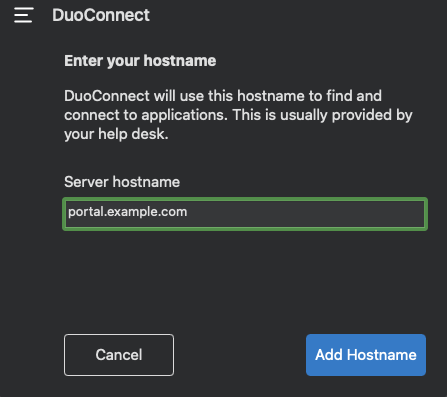
- Click anywhere else on the Windows desktop to minimize Duo Desktop’s window back to the menu bar.
- You may now use your RPD client normally however you must replace the hostname of the server with a translation for DNG. Here is an example table.
| Server hostname | Hostname to use with Duo Gateway |
| example.uchicago.edu | example.duo.psd.uchicago.edu |
| example.psd.uchicago.edu | example.psd.duo.psd.uchicago.edu |
| example.ad.uchicago.edu | example.ad.duo.psd.uchicago.edu |
Windows
SSH Usage:
For SSH, you must install DuoConnect: https://dl.duosecurity.com/DuoConnect-latest.msi
Git, Cygwin, and Other OpenSSH based Terminals
-
- Open your ~/.ssh/config file in a text editor. If you don’t have this file, create it.
- Copy and paste in the DuoConnect connection string below:
-
Host <Hostname of the SSH server> ProxyCommand duoconnect -host=%h:%p -relay=https://ssh-relay.psd.uchicago.edu
-
- Save the ~/.ssh/config file.
- Test your SSH connection.
PuTTY
-
- Open up PuTTY and load a saved PuTTY session for the SSH server you’ll be connecting to with DuoConnect.
- Expand the Connection category on the left-hand side of the PuTTY session window, and then click on Proxy. The “Options controlling proxy usage” appear on the right-hand side of the window.
- Under “Proxy type” select Local.
- Under “Telnet command, or local proxy command” copy and paste the following:
-
duoconnect -host=%host:%port -relay=https://ssh-relay.psd.uchicago.edu
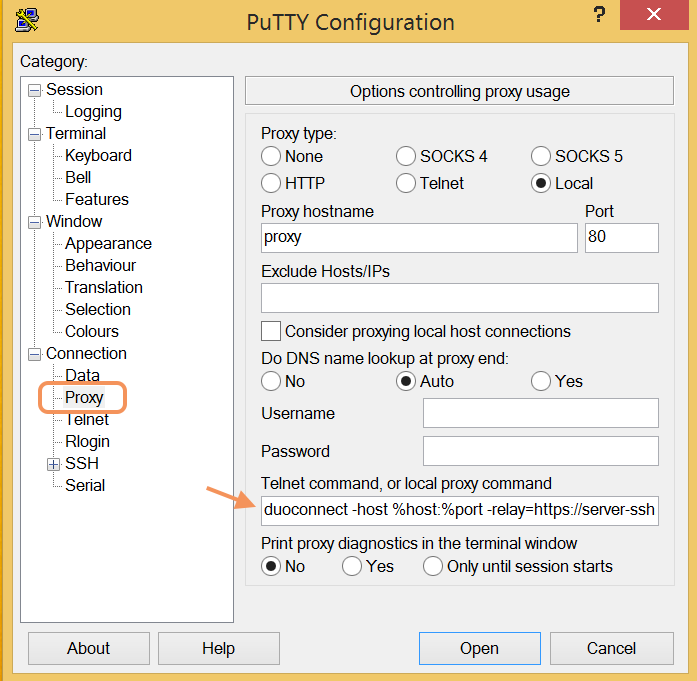
-
- Return to the saved PuTTY session window and click Save to update the session with the DuoConnect information.
- Test your SSH connection
RDP Usage:
For RDP, you must install both:
-
- DuoConnect: https://dl.duosecurity.com/DuoConnect-latest.msi
- DuoDesktop: https://dl.duosecurity.com/DuoDesktop-latest.msi
Once both are installed, here is how to configure DuoDesktop:
-
- Click on the Duo Desktop icon in the system tray to open the Duo Desktop application.
- Click the menu icon (three stacked horizontal lines) in the upper-left.
- Click on the DuoConnect menu item to open the “Welcome to DuoConnect” page. Click Get Started.
- On the “DuoConnect” app screen, enter in the following for the Server hostname: https://dng01.psd.uchicago.edu/
- Click Add Hostname. This adds your Duo Network Gateway hostname to the list of configured DuoConnect hostnames.
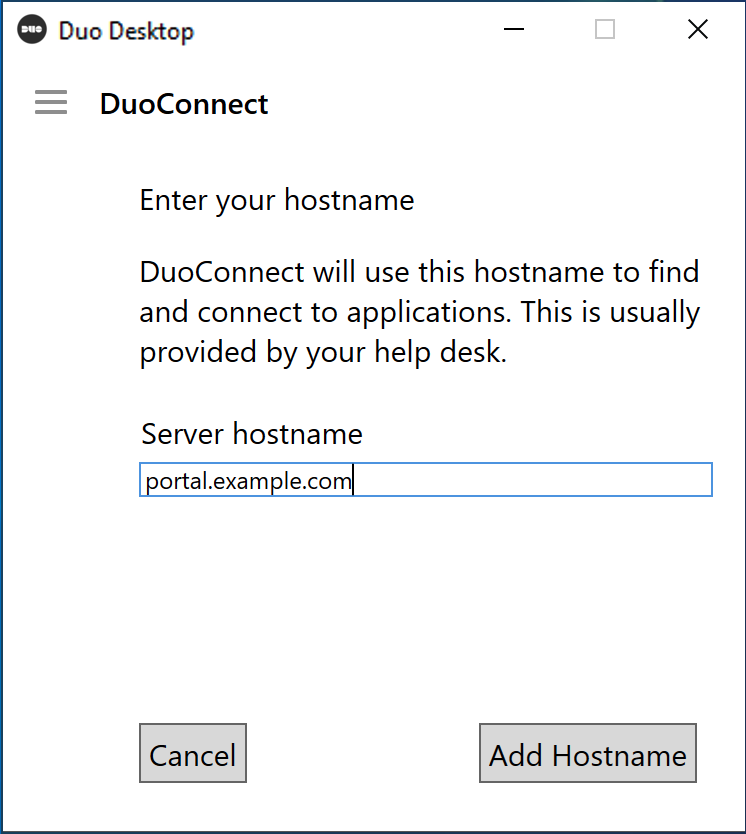
- Click anywhere else on the Windows desktop to minimize Duo Desktop’s window back to the menu bar.
- You may now use your RPD client normally however you must replace the hostname of the server with a translation for DNG. Here is an example table.
| Server hostname | Hostname to use with Duo Gateway |
| example.uchicago.edu | example.duo.psd.uchicago.edu |
| example.psd.uchicago.edu | example.psd.duo.psd.uchicago.edu |
| example.ad.uchicago.edu | example.ad.duo.psd.uchicago.edu |